How to link a personal profile to a business on NIGHTY
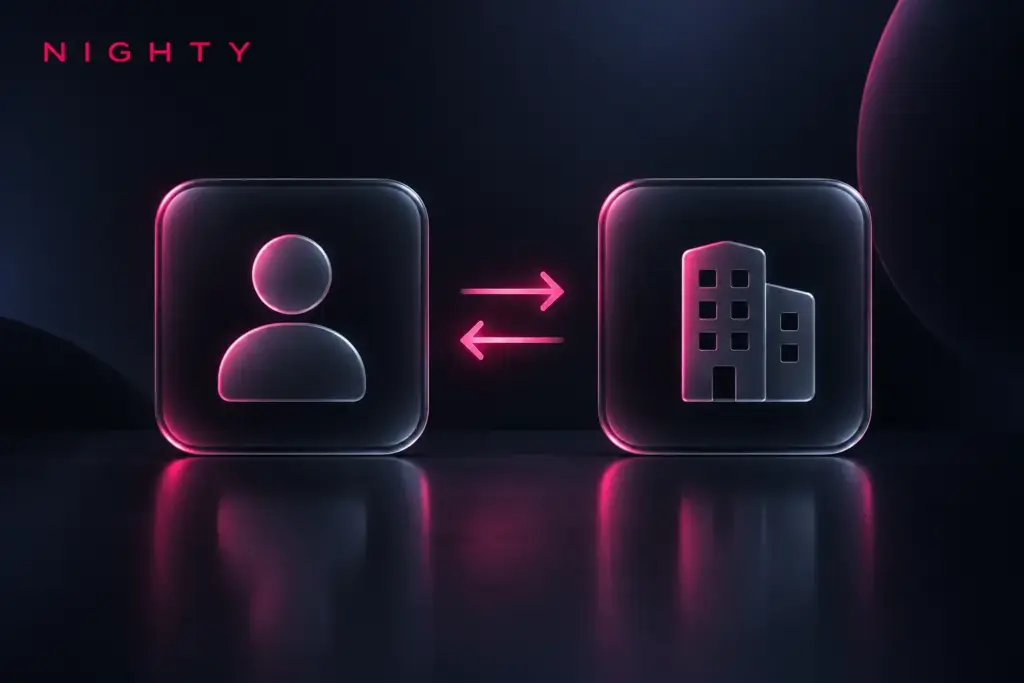
Linking connects a personal profile with a business profile. Each party continues to manage their own account and profile. One party sends a request and the other confirms it. Until confirmation, the profiles are not linked.
Start in My account
Sign in to My account and open My profiles. For a business, choose Add a girl; for a personal profile, choose Business connection. The business first selects Has a profile or Does not have a profile yet.
1. A business wants to add an existing profile
- Open Add a girl → Has a profile → Find a profile for your business.
- Enter the name in Profile name and select Search profiles. The personal profile must be published.
- Open the result and check you have selected the right person. Choose Request connection.
- The profile owner opens View request in her account and chooses Confirm connection or Decline.
Until confirmation, the business sees the request under Waiting for the girl's confirmation. Once accepted, it appears under Linked profiles.
2. The person does not yet have an account or profile
- Open Add a girl → Does not have a profile yet → Invite to register.
- Enter her email address and confirm that she asked you to send an invitation to that address.
- Select Send registration invitation. It appears in Sent invitations as Awaiting registration.
- The recipient opens the email link and creates her own account and profile. After registering, she opens the request in her account and decides whether to confirm the connection.
A registration invitation is valid for 7 days and can be used once. The business does not set the other person's password or gain access to her account.
The account already exists but the profile is not public? Do not register again with the same email address. The owner completes her profile and submits it for approval. Once published, the business can find it through Has a profile. From the invitation form, return to search using Already has a profile? Find it here.
3. Request a connection from your personal profile
- Under My account → My profiles, open Business connection.
- In Request a business connection, search for the business by name.
- Check the business and your own profile, then choose Request connection.
- The business administrator accepts or declines in their account. Until then, you see Waiting for the business.
If the business has already sent you a request, View request shows the number of incoming requests. There is no need to send another request in the opposite direction.
What do the statuses mean?
- Awaiting registration: the recipient has not completed registration through the invitation; the invitation lasts 7 days.
- Awaiting confirmation / Waiting for the business: the other party has not decided yet. A connection request is valid for 14 days.
- Linked profiles: the other party accepted and the connection is active.
Cancel a request or end a connection
The sender can choose Cancel request; the recipient can choose Decline. Either party can end an active connection with End connection. The personal profile and its account remain intact.
A personal profile can be linked to one business in the same country. End the existing connection before switching to another business.
Linking and publishing are separate
Linking does not transfer ownership or management of a personal profile to the business and does not publish the profile automatically. Profile completion, consent to publication and administrator approval are separate steps. Never share your login details to create a connection.
Cannot find a profile? Check its name, publication status, country and any existing business connection. See account help and the FAQ. If the problem continues, contact NIGHTY support with links to both profiles.